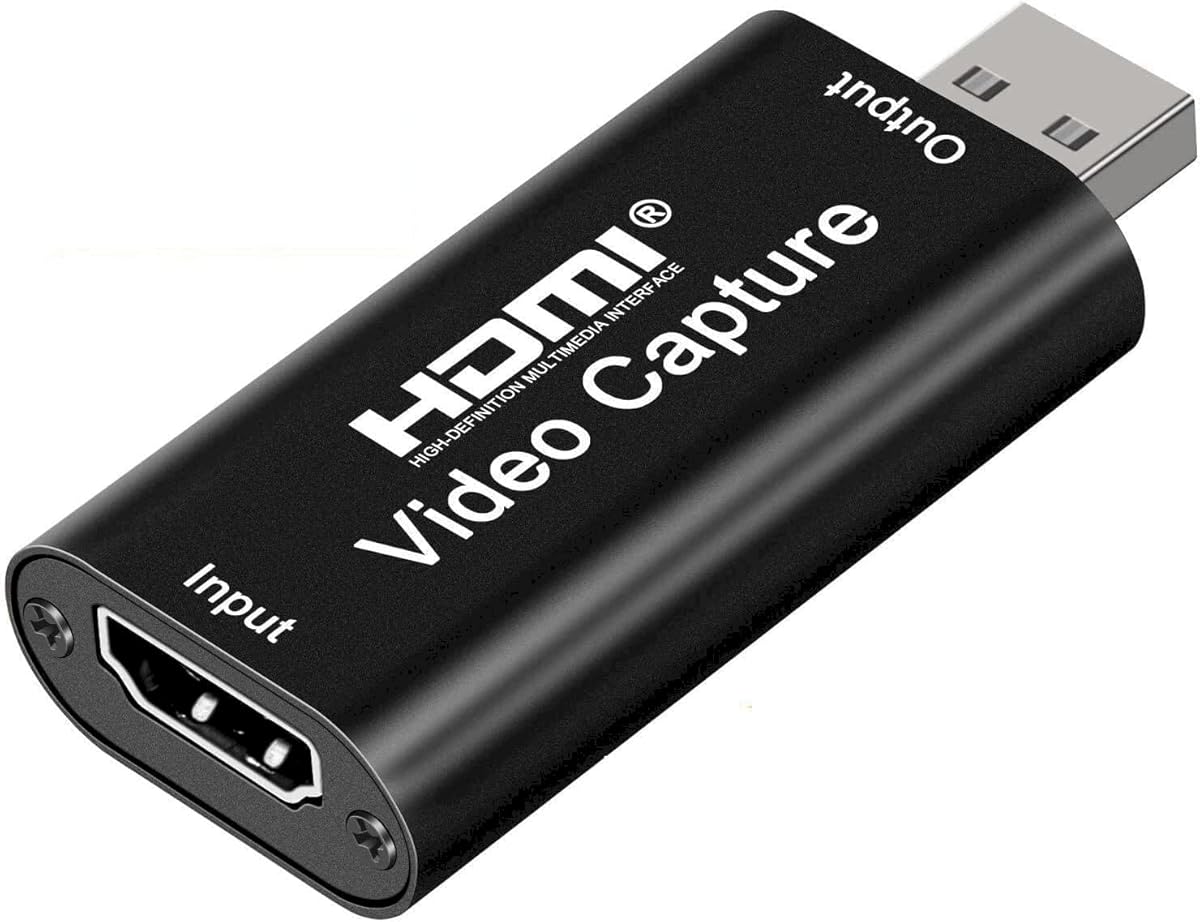
Audio Express AXHDCAP 4K HDMI Video Capture Card
4.4Editor score
Affordable USB 2.0 capture
1080P 30Hz output support
Plug and play design
Finding the right HDMI recorder can transform how you capture video from consoles, cameras, or set-top boxes. Whether you need standalone recording without a PC or a USB capture card for streaming, understanding the features matters for quality results.
We evaluated ten real products based on resolution support, latency, compatibility, and ease of use. Each entry includes verified details on input types, storage options, and software requirements to ensure you get accurate information before making a purchase decision today.
Every pick highlights key strengths, drawbacks, and ideal use cases so you know exactly what to expect. Please note that availability and pricing may change frequently, so always check the latest offers directly on the retailer page before completing your order now.
4.4Editor score
4.0Editor score

4.1Editor score
As an Amazon Associate we earn from qualifying purchases.
This side-by-side comparison lists all ten HDMI recorders with their core specifications and links to verify current details. Use this table to quickly identify which device matches your resolution needs, input requirements, and budget constraints before you start shopping.



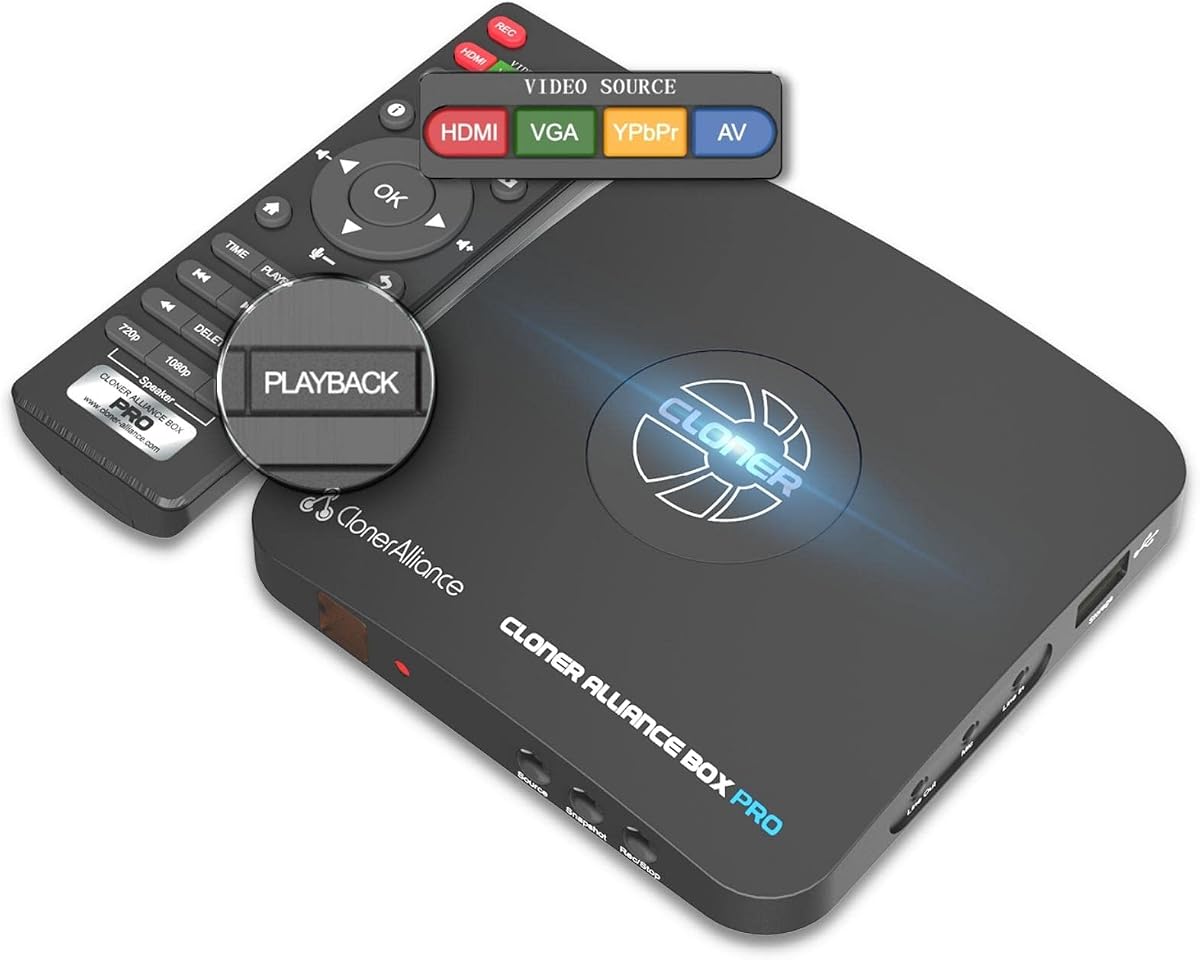
The ClonerAlliance Box Pro is a standalone device designed to capture 1080p video at 60fps without needing a computer. With a 4.0 rating, it stands out for its ability to digitize analog sources like VHS tapes and game consoles directly to USB storage.
We may earn a commission when you buy through this link, at no additional cost to you.
Its strongest feature is the broad input support covering HDMI RCA Composite Component YPbPr and VGA. This makes it ideal for archiving old media or capturing feeds from devices that lack modern connectors. The included remote and TV playback functionality add convenience for viewing recordings on a big screen.
While it handles many analog sources well, it cannot process content protected by HDCP which limits use with some modern streaming devices. Users must ensure they have sufficient USB storage since the unit does not include internal memory. Setup remains simple even for those unfamiliar with video capture hardware.
Buy this if you need a dedicated recorder that works independently of your PC for archiving analog video or capturing console gameplay. It offers a reliable solution for preserving legacy formats and modern HD content alike without complex software configurations or constant computer dependency.
Recording directly to USB without a PC frees your computer for other tasks and simplifies the workflow for users who want quick capture capabilities.
This device converts older analog signals into MP4 files allowing you to preserve memories from VHS tapes and camcorders in a modern format.
We may earn a commission when you buy through this link, at no additional cost to you.
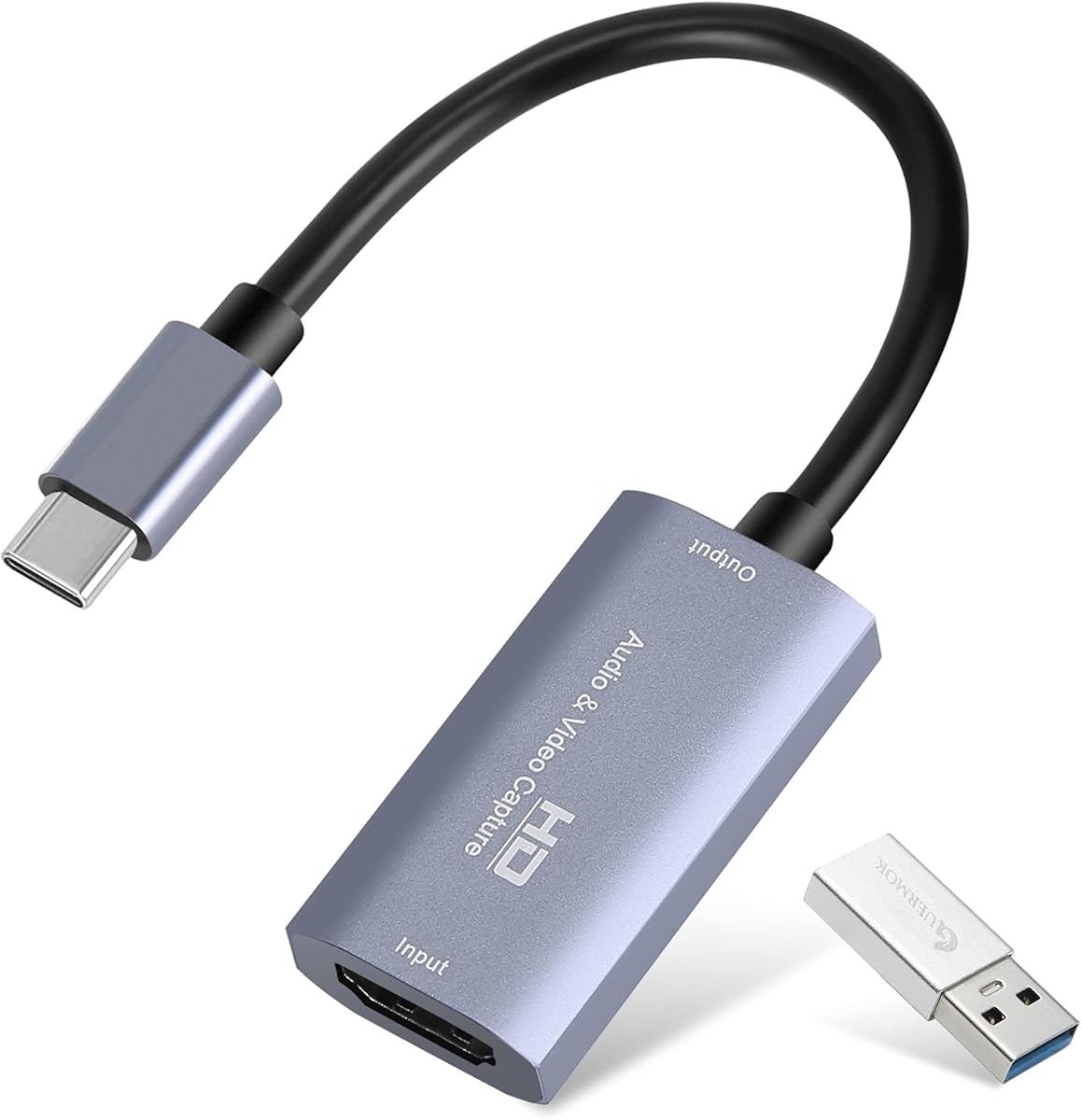
The Guermok Video Capture Card offers a compact solution for capturing HDMI video at 1080p 60fps via USB 3.0. Rated at 4.4, it is popular among streamers who need low latency performance for live gaming or online meetings without bulky hardware.
We may earn a commission when you buy through this link, at no additional cost to you.
Its aluminum alloy construction helps dissipate heat during extended use ensuring stable performance without overheating. The device supports a wide range of operating systems including Windows Mac and Linux making it versatile for different setups. Users can stream directly to platforms like Twitch YouTube or Facebook with minimal configuration.
It requires external software like OBS or VLC to function since it does not output directly to a monitor. Some users may encounter USB 2.0 speeds if connected to the wrong port so checking connections is essential for full bandwidth. Overall it delivers reliable capture for its size and price.
Choose this card if you need a portable capture device for streaming or recording gameplay on the go. Its plug and play nature and broad compatibility make it accessible for beginners and pros alike looking for consistent performance in daily content creation tasks.
The small lightweight design allows you to carry this capture card in a bag for live streaming events or LAN parties easily.
Compatible with Windows Mac and Linux this card ensures you can use it across different devices without needing specific drivers or tweaks.
We may earn a commission when you buy through this link, at no additional cost to you.
The ClonerAlliance UHD Pro is a premium standalone recorder capable of capturing 4K video at up to 30fps with H.265 compression. With a 4.1 rating, it appeals to users who want high resolution recording without relying on a computer for processing or storage management.
We may earn a commission when you buy through this link, at no additional cost to you.
It supports 4K660fps passthrough so you can watch content on your TV while recording simultaneously. The ability to record at cinematic 24fps adds a professional touch to gameplay or movie captures. Schedule tasks allow automated recording ensuring you never miss scheduled events like live streams or broadcasts.
Like other recorders it does not support HDCP protected content so be mindful of source restrictions. The device works with various file systems including exFAT and NTFS providing flexibility for storage devices. While more expensive than basic cards the standalone convenience and 4K capability justify the cost for enthusiasts.
Invest in this unit if you need to archive 4K content from consoles or cameras directly to storage. Its cinematic recording options and schedule features make it a powerful tool for content creators who prioritize resolution and workflow efficiency over PC dependency.
Recording 4K video directly allows you to preserve high detail footage from modern gaming consoles and cameras without upscaling loss.
The option to record at 24fps gives your gameplay videos a movie-like quality that stands out from standard 60fps captures.
We may earn a commission when you buy through this link, at no additional cost to you.
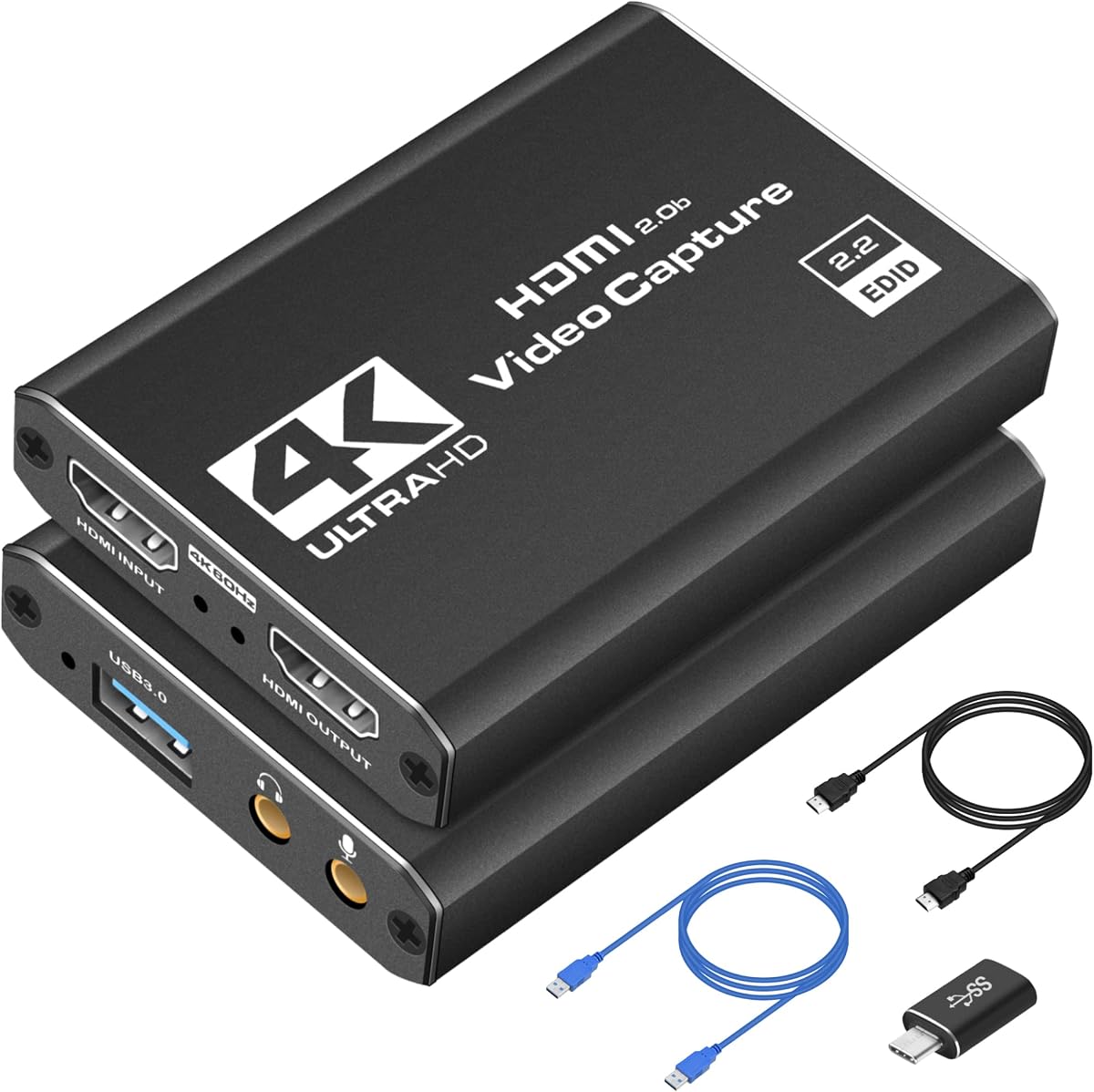
This Capture Card delivers 1080p 60fps recording via USB 3.0 with support for 4K input sources. Rated at 4.3, it is designed for gamers who want to stream gameplay from consoles like PS5 or Xbox without lag. The loop output ensures you see your gameplay directly on a monitor.
We may earn a commission when you buy through this link, at no additional cost to you.
It includes a microphone input allowing you to add commentary while recording or streaming. This feature is useful for content creators who want to add voiceovers directly during capture sessions. The device is plug and play so it initializes automatically as a webcam on most systems.
Although it supports 4K input, the output is limited to 1080p 60fps which is fine for streaming but not for 4K archiving. You will need software like OBS to record the signal since it does not save directly to storage. For budget friendly live streaming this is a strong choice.
Buy this if you need a reliable way to stream or record 1080p gameplay with commentary capabilities. The loop output and mic input provide essential tools for engaging live broadcasts without requiring complex external audio setups or expensive hardware encoders.
The built-in mic jack lets you add live commentary directly to your stream which simplifies audio setup for content creators.
With HDMI loop output you can view your gameplay on a monitor with zero delay while capturing the video separately for recording.
We may earn a commission when you buy through this link, at no additional cost to you.
The Audio Express AXHDCAP offers an affordable entry point for HDMI capture with 4K input support limited to 30Hz. Rated at 4.4, it serves well for basic streaming, video conferencing, or teaching where 1080p 30fps is sufficient. Its thermal dissipation design helps maintain stability during use.
We may earn a commission when you buy through this link, at no additional cost to you.
It is fully plug and play requiring no drivers making it easy to connect to Windows or Mac systems. This makes it a practical tool for educators who need to record lessons or present content from a camera without technical hurdles. It supports popular platforms like YouTube Zoom and VLC.
Users should note that while it accepts 4K input the output maxes out at 1080p 30fps due to USB 2.0 bandwidth. This may not be ideal for fast action gaming but works for static presentations or video calls. Check your USB ports to ensure proper recognition for best performance.
Choose this budget capture card if you need a simple device for meetings, lessons, or casual streaming on a tight budget. It provides essential functionality without the cost of higher bandwidth USB 3.0 devices while still delivering clear video quality for everyday scenarios.
At a low price point this capture card makes video recording accessible for beginners who want to start streaming without investing heavily.
The simplicity and compatibility with Zoom make this card a great tool for teachers and professionals needing reliable video feeds.
We may earn a commission when you buy through this link, at no additional cost to you.
This Capture Card is designed for portability and performance with 1080p 60fps capture over USB 3.0. With a 4.4 rating, it is favored by gamers who travel or switch setups often. It supports a wide range of devices including PS5 Xbox and Nintendo Switch with minimal setup steps.
We may earn a commission when you buy through this link, at no additional cost to you.
Its lightweight form factor fits easily into a laptop bag making it ideal for LAN parties or on location streaming. The low latency ensures that your stream matches your actions in real time without noticeable delay. Compatibility with OBS Streamlabs and XSplit streamlines the workflow for content creators.
Since it is a PC dependent device you must connect it to a computer to record or stream which limits standalone use. Ensure you use a USB 3.0 port to avoid bandwidth bottlenecks that might reduce quality. The device handles multiple HDMI sources seamlessly for versatile usage.
Opt for this card if you need a portable capture solution that delivers high frame rates on the go. Its broad console compatibility and ease of use make it a practical choice for content creators who value mobility without sacrificing video quality.
Support for major consoles like PS5 and Switch ensures you can capture gameplay from any current generation gaming system effortlessly.
Using USB 3.0 allows for faster data transfer which maintains high quality video streams without compression artifacts during live broadcasts.
We may earn a commission when you buy through this link, at no additional cost to you.
The 4K60 Video Capture Box features two HDMI inputs allowing you to switch between sources or use picture in picture modes. Rated at 3.8, it offers a built-in 7-inch screen for previewing content without needing a TV. This is useful for field work or setups without a display.
We may earn a commission when you buy through this link, at no additional cost to you.
It supports USB and SD storage for saving recorded clips directly. The ability to run on external batteries makes it portable for events where power outlets are limited. Users can connect consoles cameras or set-top boxes easily for professional recording results.
While versatile, the rating suggests some users may face compatibility or quality issues. It does not support copyrighted content so be mindful when capturing from sources like streaming sticks. Check connections carefully to ensure stable signal input. It is a niche tool for specific multi-source needs.
Consider this box if you need to manage two video sources simultaneously and want a standalone display for monitoring. Its battery compatibility and PIP features offer unique utility for events or broadcasts where traditional setups are impractical or unavailable.
Having two HDMI inputs allows you to switch between cameras or game consoles quickly without re-cabling your setup.
The built-in 7-inch screen lets you preview recordings and switch sources without connecting to a TV or monitor.
We may earn a commission when you buy through this link, at no additional cost to you.
The ZowieREC 4K HDMI Video Recorder stands out with its sleek aluminum casing and standalone 4K recording capabilities. Rated at 3.3, it targets users who want a stylish device that does not need a PC. The ability to pause and resume recording gives you control during gameplay sessions.
We may earn a commission when you buy through this link, at no additional cost to you.
It supports scheduling so you can set recordings at specific times automatically. This is helpful for capturing scheduled streams or broadcasts without monitoring the device manually. Pass-through support lets you watch while recording which maintains the experience for viewers on a display.
While the design is appealing, user feedback suggests potential reliability challenges. Ensure you have compatible storage devices since it does not include internal memory. HDMI content protection may limit sources so verify device compatibility before use. It offers a premium look but verify performance expectations carefully.
Choose this if aesthetics and standalone 4K capture are your priorities. Its pause and schedule features add convenience for casual users who want a dedicated recorder with a polished look that fits well in home setups.
The premium aluminum design ensures the device looks professional on your desk and offers durability for long term use.
The pause and resume button allows you to skip unwanted segments during capture making editing easier later.
We may earn a commission when you buy through this link, at no additional cost to you.
The ClonerAlliance ViewPro is a portable recorder featuring a 7-inch LCD screen for previewing and playback without a TV. Rated at 4.3, it supports 1080p 60fps capture and various analog inputs like AV VGA and YPbPr. This makes it ideal for archiving older formats like VHS tapes.
We may earn a commission when you buy through this link, at no additional cost to you.
It includes an infrared remote for easy navigation on the device. The schedule recording function helps you set up automatic captures so you never miss content. You can save directly to USB or SD cards making transfer to computers simple for editing.
While it focuses heavily on analog inputs it may not be the first choice for pure HDMI modern setups unless you verify compatibility. The screen size is generous for portable devices but adds bulk. Ensure you have enough storage capacity for long sessions.
Select this unit if you need a portable display with strong analog digitization capabilities. It bridges the gap between old media archives and modern digital formats efficiently allowing you to keep legacy recordings accessible in MP4 formats.
The built-in LCD screen lets you view playback anywhere without needing an external monitor or TV for immediate review.
Support for AV and VGA inputs allows you to convert old tapes and camcorder footage into digital files easily.
We may earn a commission when you buy through this link, at no additional cost to you.
The Blackmagic Design UltraStudio Express is a professional SDI capture device designed for high-end broadcast workflows. It supports 3G SDI speeds and loop outputs ensuring reliable signal distribution. While rated N/A, it is widely recognized for quality in post-production environments rather than casual gaming.
We may earn a commission when you buy through this link, at no additional cost to you.
It requires specific software integration for recording unlike the plug and play consumer cards. This device is suited for studios using Blackmagic systems for editing. The loop output allows passing signals to other monitors without loss. It does not have standard HDMI inputs like the other options.
Users must be comfortable with professional video protocols and cabling. It is an investment for serious editors needing reliable SDI capture. Ensure your workflow matches the requirements before purchasing. This is not a typical consumer recorder but a studio tool.
Choose this if you are a professional editor working with SDI cameras and broadcast gear. It offers industry standard reliability and performance for complex production environments where HDMI capture cards do not meet the necessary quality standards.
SDI inputs ensure professional grade signal transmission with robust locking connectors to prevent accidental disconnections during recording.
Built for Blackmagic workflows this device integrates seamlessly into high-end post-production pipelines for consistent editing results.
We may earn a commission when you buy through this link, at no additional cost to you.
Choosing the right HDMI recorder depends on your resolution needs input types and whether you need standalone operation or PC integration. Consider these factors to find a device that matches your workflow.
Check if the device supports 1080p 60fps or 4K recording. Some capture cards accept 4K input but output only 1080p which may limit archiving high detail content. Match the output to your storage and bandwidth needs.
For gaming streams 1080p 60fps is often sufficient but for archival work 4K capture ensures better detail retention over time.
Standalone recorders work without a computer allowing you to capture directly to USB drives. PC dependent cards require software like OBS but may offer more control. Decide based on whether you want a simple workflow or flexible editing options.
Standalone units are best for quick setup while PC cards suit users who want advanced streaming features.
Ensure the device supports your source devices. HDMI is common but some setups need RCA VGA or SDI inputs. Mismatched inputs will prevent capturing footage. Check the product specs for supported connector types before buying.
Matching inputs to your sources ensures smooth signal transfer without adapters that can introduce quality loss.
Standalone devices save to USB drives or SD cards often in MP4 format. Verify file system support like exFAT or NTFS to avoid format errors. PC cards write to your hard drive directly which requires sufficient disk space.
High resolution videos need large storage so ensure your device supports high capacity drives for long sessions.
Low latency is critical for live streaming to ensure viewers see your actions in real time. Look for descriptions mentioning ultra-low latency or lag-free performance. High latency can cause issues for gameplay streams.
Testing latency with your software before final setup helps avoid disruptive delays during broadcasts.
Some capture cards require third-party software like OBS to function while standalone units have built-in recording. Ensure you have the right OS support and software licenses if needed. Check compatibility with your current tools.
PC dependent cards offer more features but require more setup time than plug-and-play standalone devices.
Most USB capture cards draw power from the computer but standalone recorders may need external power or batteries. Check if the device supports battery power for mobile use. Power stability prevents recording interruptions.
Battery support is key for field recording where power outlets are not easily accessible.
Many recorders cannot capture HDMI content protected by HDCP such as from streaming services. This limitation is hardware enforced to prevent piracy. Verify what sources work if you need to capture specific content.
Expect errors or black screens with protected content and focus on unprotected sources for successful capture.
Connect your HDMI source to the recorder and your display if using passthrough. Ensure cables are secure to avoid signal loss during recording sessions.
Insert your USB drive or SD card before starting. Format it to a compatible file system if needed to ensure successful saving of video files.
For standalone units use the included remote to start and stop recording. For PC cards open your software and select the capture device before you begin capturing video.
Yes, some standalone recorders like the ClonerAlliance UHD Pro support 4K recording. However, ensure the console is set to output 4K. Check HDCP compatibility as protected content may not record. For standard games, 4K capture is achievable with compatible hardware.
Many USB capture cards support Mac OS including Guermok and Audio Express models. Verify driver requirements as some need software setup. Standalone recorders do not depend on the computer so they work regardless of OS.
1080p 60fps requires significant space. A 64GB USB drive might record 1 to 2 hours depending on bitrate. Use high capacity drives for longer sessions. Check the device's supported file size limits before recording.
Check that you are using a USB 3.0 port for bandwidth. Restart your software after plugging in the device. Ensure you have the latest drivers if required by the manufacturer. Try a different cable to rule out physical issues.
Most recorders cannot capture HDCP protected content from streaming services. This is a copyright protection measure. You will see a black screen instead of video. Use these devices for unprotected sources like game consoles or cameras.
Standalone recorders do not require software for recording. They use onboard interfaces. Some include conversion software for PCs but it is optional. The device works independently using USB drives or SD cards for saving files.
Standalone units have built-in schedule functions to set recording times. Access the menu on the device to configure start and stop times. Ensure the device is powered on before the scheduled start for the recording to begin.
Some capture cards have microphone inputs allowing commentary during recording. Standalone units may not have this feature. Check the product specs for mic-in support. External mixers can be used with devices that support audio inputs.
This guide presented ten HDMI recorders ranging from budget USB cards to professional standalone units. Top picks like the ClonerAlliance Box Pro and Audio Express AXHDCAP offer balanced features for different users.
Prioritize resolution and connectivity based on your needs. If you want standalone operation look at ClonerAlliance models. For streaming USB cards like Guermok provide versatility with low latency.
Check current availability and pricing as details may change over time. Select the device that aligns with your sources and budget for the best recording experience.