
SABRENT USB 3.0 to 2.5in SATA Adapter Cable
4.7Editor score
Compact cable design
Bus powered operation
UASP support included
Finding the right laptop hard drive adapter kit is essential for accessing data from older drives or expanding storage capacity. These tools allow you to connect internal drives to your computer externally without opening the case. A good kit supports multiple drive types and offers fast transfer speeds for efficient data management.
We evaluated the leading models available today based on compatibility, build quality, and ease of use. Our selection includes adapters that handle SATA and IDE drives, as well as modern USB-C connections. Each product was assessed for its ability to provide stable power and reliable performance across different operating systems.
Each pick below highlights specific strengths and ideal use cases for various users. Whether you need to recover old files or backup current data, these kits offer versatile solutions. Please note that product details and availability can change over time, so verify specifications before purchasing.
4.7Editor score

4.6Editor score
4.6Editor score
As an Amazon Associate we earn from qualifying purchases.
The following table provides a side-by-side comparison of all ten top-rated adapters. It highlights key specifications such as supported drive sizes, interface types, and power requirements to help you quickly identify the best fit for your needs.


This model stands out as a top contender for anyone needing reliable data access from older hard drives. With a rating of 4.6 stars, users praise its ability to handle both SATA and IDE interfaces without hassle. The inclusion of a robust power adapter ensures that even demanding 3.5 inch drives spin up consistently.
We may earn a commission when you buy through this link, at no additional cost to you.
The design focuses on stability and ease of use. It features an extended body that makes connecting the 3.5 inch IDE port easier than on slimmer models. The flexible power cable reduces strain during connection, and the LED indicator provides clear feedback on drive status. This attention to detail helps prevent data loss during transfers.
While highly effective, there are minor drawbacks to consider. The unit is somewhat large, which might be an issue for users with limited desk space. Additionally, while it supports USB-C devices, you may need to ensure you have a compatible cable on hand if your host port requires it.
This adapter is ideal for IT professionals, home users, and anyone tasked with retrieving files from old storage. It balances performance with practical design features that make data recovery straightforward. For those prioritizing reliability and broad compatibility, this kit is a strong recommendation.
The dual interface design allows connection to modern laptops with USB-C ports as well as traditional systems with USB-A ports, maximizing usability across different setups.
A dedicated 12V/2A power adapter is included to ensure consistent performance, which is critical when working with larger desktop drives that require more power.
We may earn a commission when you buy through this link, at no additional cost to you.
For users focused on laptop drives, this adapter offers exceptional value. It holds a high rating of 4.7 stars, reflecting its reliability for quick data transfers. The cable design is sleek and portable, making it perfect for technicians who need to access data on the go without carrying bulky docks.
We may earn a commission when you buy through this link, at no additional cost to you.
The UASP support significantly boosts transfer speeds compared to standard USB 2.0 connections. This means moving large files becomes much faster. Since it is bus powered, you do not need to hunt for an extra outlet or adapter, simplifying the setup process significantly. It supports hot swapping for quick changes.
Its main limitation is drive size compatibility. It only works with 2.5 inch SATA drives, so desktop 3.5 inch models cannot be used with this cable. If your needs are limited to laptop SSDs or HDDs, this restriction is not an issue, but it does reduce versatility compared to broader adapters.
This product is the best choice for budget-conscious users who primarily deal with laptop storage. It delivers high performance without the extra cost of power adapters or complex connectors. If you need a simple, effective tool for 2.5 inch drives, this cable is a top pick.
Its small form factor allows you to keep it in a laptop bag for emergency data access anywhere without needing extra power sources.
The support for UASP protocol ensures that your data moves at the fastest possible speed compatible with your system, reducing wait times.
We may earn a commission when you buy through this link, at no additional cost to you.
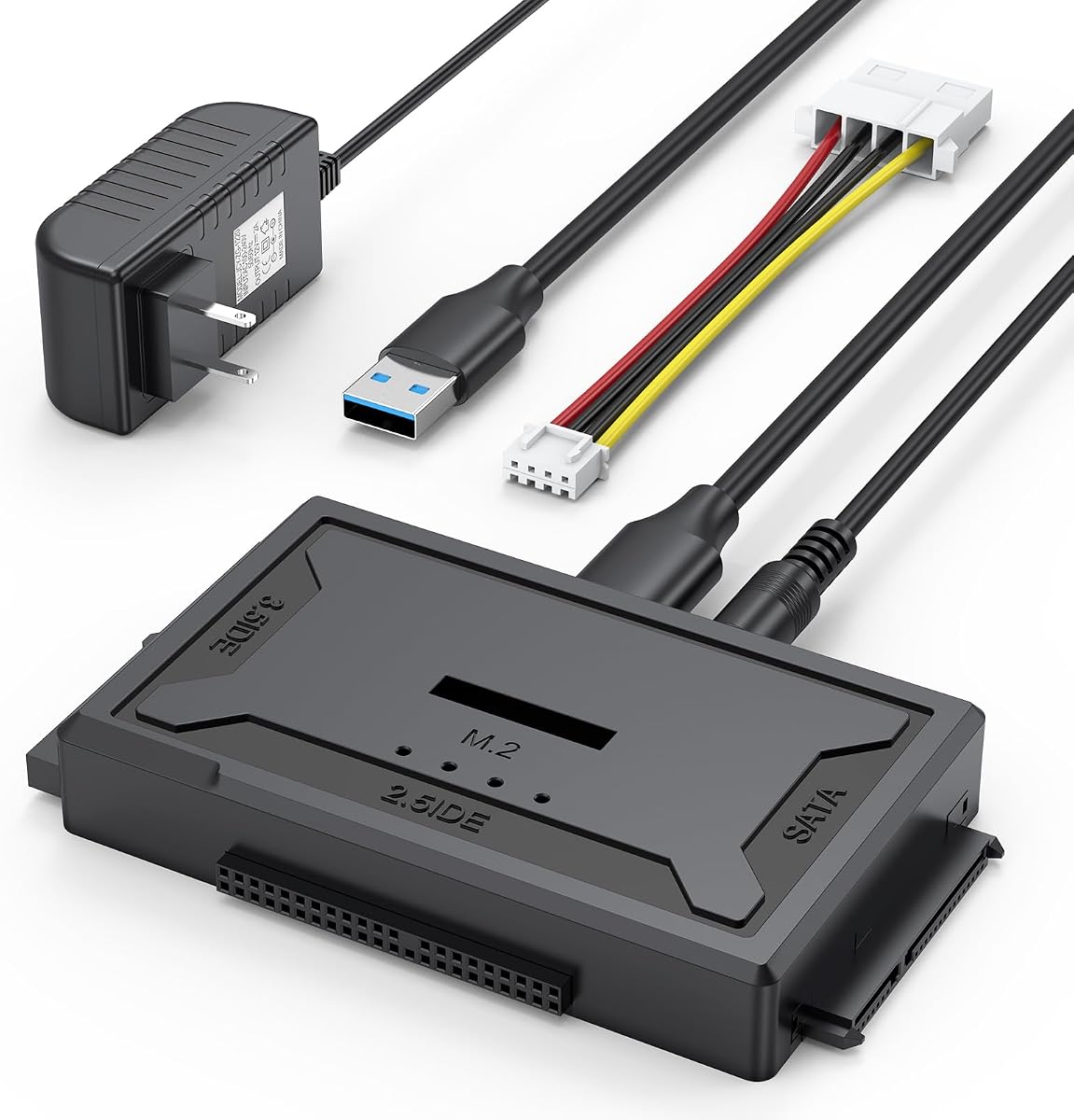
This adapter is designed for users who need maximum compatibility across different generations of storage technology. With a rating of 4.6 stars, it is praised for reading M.2 NVMe drives alongside traditional SATA and IDE options. The ability to access ultra-fast NVMe SSDs makes it a premium choice for modern data recovery.
We may earn a commission when you buy through this link, at no additional cost to you.
The interface supports transfer speeds up to 10Gbps for M.2 drives, which is significantly faster than standard USB 3.0 connections. The design includes softer, flexible power cables that make connecting old IDE drives less stressful. Open design compatibility ensures it fits any size of M.2 SSD without issue.
While versatile, it is more complex than necessary for users who only need to connect simple drives. The cost is higher than basic cables, reflecting its advanced capabilities. If your workflow involves a mix of old and new hardware, this complexity is justified by the convenience it offers.
For advanced users or IT professionals managing diverse storage assets, this dock is unmatched. It eliminates the need for multiple adapters by consolidating functions into one robust unit. If you need future-proof support for NVMe drives alongside legacy options, this is the ideal selection.
The support for M.2 NVMe interfaces allows you to utilize the full speed of modern SSDs, ensuring your data transfers are not bottlenecked.
Despite its modern features, it remains fully compatible with older IDE and SATA drives, ensuring you can access archives without special hardware.
We may earn a commission when you buy through this link, at no additional cost to you.
This adapter offers a unique feature by allowing simultaneous connection of two drives. This makes it highly efficient for direct cloning or backup tasks. Users appreciate the ability to handle both IDE and SATA interfaces in one unit. The power adapter ensures stable operation for 3.5 inch drives during these intensive tasks.
We may earn a commission when you buy through this link, at no additional cost to you.
The interface supports USB 3.0 for fast data transfers with backward compatibility for older systems. It can also connect optical drives like CD-ROMs, expanding its utility beyond standard hard drives. The design includes an On/Off switch to protect drives from unnecessary wear during operation changes.
The main constraint is that it relies solely on USB A ports. If your laptop has only USB C ports, you will need an additional adapter. Also, you must ensure you have a wall outlet for the power adapter during use. This limits portability compared to bus powered options.
It is an excellent choice for users who need to move data between drives frequently. The dual drive support saves time and reduces the need for multiple setups. If you work with a mix of old IDE and modern SATA drives and have access to power, this is a reliable tool.
Connecting two drives at once allows you to copy data directly between them without needing a temporary computer storage, streamlining your workflow.
The ability to connect optical drives means you can access legacy data from discs as well as hard drives with a single adapter unit.
We may earn a commission when you buy through this link, at no additional cost to you.
This adapter is built to handle a wide range of drive capacities and operating systems. It supports drives up to 20TB which covers even the largest modern storage needs. Users value its compatibility with Windows Mac and Linux making it versatile for different environments. The On Off switch adds a layer of protection for your data.
We may earn a commission when you buy through this link, at no additional cost to you.
Technical support is a strong point with a dedicated team ready to assist with any setup issues. The interface supports USB C and USB 3.0 ensuring it works with both new and old computers. Detailed instructions help troubleshoot common issues like unrecognized drives or read errors effectively.
While it has broad support, some users have noted a lower average rating compared to others. This often relates to specific compatibility nuances with very old drives. Always check your drive requirements before use to ensure smooth operation. Power supply needs may vary by drive size.
For users needing to support various operating systems and very large storage capacities, this kit is a solid option. The inclusion of support resources makes it easier to resolve technical challenges. If you need a universal solution for data transfer across platforms, consider this model carefully.
The ability to handle up to 20TB means you will not outgrow this adapter as you add larger drives to your storage needs over time.
Compatibility with Linux Mac and Windows ensures you can use the same tool across different work environments without needing separate hardware.
We may earn a commission when you buy through this link, at no additional cost to you.
This converter is designed specifically for data recovery tasks where stability is key. It supports transfer speeds up to 5Gbps which is efficient for moving large backups. The inclusion of a dedicated power adapter ensures that older 3.5 inch IDE drives receive sufficient voltage. Users appreciate the LED indicators for monitoring activity status.
We may earn a commission when you buy through this link, at no additional cost to you.
It supports hot swapping which allows you to change drives without restarting your computer. This is useful when working with multiple drives to recover files quickly. The manual provides guidance on jumper settings which can be tricky with older IDE drives. This helps reduce frustration during setup.
Older IDE drives may require specific jumper settings to function correctly as a master or slave. This adds a step to the setup process compared to modern SATA drives. Additionally, you must remember to plug in the power adapter every time to avoid connection failures with desktop drives.
For home users recovering data from old laptops or desktops, this adapter offers the necessary tools. The power supply inclusion removes the guesswork of finding the right voltage. If you are comfortable with a few extra setup steps for maximum compatibility, this kit is a trustworthy choice.
The included power adapter guarantees that your drives spin up correctly, preventing data corruption that can occur from unstable power sources.
Hot swap support means you can switch between multiple drives without rebooting your system, saving time during recovery operations.
We may earn a commission when you buy through this link, at no additional cost to you.
This docking station is designed for easy physical handling of bare drives. You can simply slide a SATA drive into the bay without tools. It supports both 2.5 and 3.5 inch drives for flexibility with laptop and desktop storage. Users like the lay flat design which reduces the footprint on the desk.
We may earn a commission when you buy through this link, at no additional cost to you.
The power adapter ensures stable operation for larger drives. While it does not support IDE drives, it is optimized for SATA performance. The UASP support ensures faster transfer speeds when used with compatible hosts. LED indicators help you confirm that the drive is active and healthy.
One limitation is the USB A connection which requires an adapter for modern USB C only laptops. Additionally, it is not designed for boot drives or complex embedded systems. You must ensure your drive is bare SATA and not inside an enclosure before connecting it to the dock.
For users who frequently swap drives to backup or access data, this dock is convenient. The tool free design makes it faster to set up than screwing drives into enclosures. If you have a collection of SATA drives and need a simple way to access them, this is ideal.
The slide in bay design allows you to insert drives without screws or tools, making maintenance and drive changes much faster and easier.
Including a dedicated power adapter ensures that even large desktop drives spin up reliably, preventing read errors caused by power drops.
We may earn a commission when you buy through this link, at no additional cost to you.
This adapter combines versatility with a compact design. It supports both USB and USB C ports making it easy to connect to various computers. The inclusion of a power adapter ensures that 3.5 inch IDE drives have the power they need. Users appreciate the clear LED indicator for monitoring connection status.
We may earn a commission when you buy through this link, at no additional cost to you.
You can connect two drives simultaneously but only work with one IDE and one SATA at the same time. This allows for versatile data recovery scenarios. The transfer speed is up to 5Gbps which is fast enough for most backup tasks. Hot swap capability adds convenience for quick access.
New drives need to be initialized in disk management before they can be recognized. This is a standard requirement for any new hardware but can be a surprise for some users. Also you cannot connect two IDE drives at once so plan your workflow accordingly.
For general users needing to access a mix of old and new drives, this is a practical tool. The dual interface design reduces the need to switch cables. If you have limited ports on your computer and need to use both USB and USB C, this offers the flexibility you need.
Supporting both USB A and USB C ports means you can use the adapter on modern and older computers without buying extra dongles.
The high speed interface ensures your data moves quickly from the drive to your computer, saving time during large backups or transfers.
We may earn a commission when you buy through this link, at no additional cost to you.
This adapter supports optical drives which is rare in standard hard drive kits. It can handle CD and DVD drives alongside standard hard drives. The dual head IDE connector supports both 40 pin and 44 pin drives for legacy compatibility. Users find the LED light helpful for checking activity status.
We may earn a commission when you buy through this link, at no additional cost to you.
It supports hot swapping which makes changing drives easy. The power adapter ensures stable performance especially for 3.5 inch IDE drives. The 2 in 1 cable supports both USB and USB C connections for convenience. This flexibility makes it easier to connect to modern laptops and desktops.
New drives still require initialization in disk management. Also desktop computers should connect to rear USB ports for stable power delivery. These steps ensure the adapter and drive function correctly without interruptions during use. Always check your drive type before connecting for best results.
For users who need to access both hard drives and optical media, this kit is unique. The inclusion of optical support expands its utility for recovering data from CDs or DVDs. If you need to archive physical media and hard drives simultaneously, this adapter is a useful solution.
Unlike many adapters, this one allows you to connect CD and DVD drives so you can access archived data stored on optical discs.
The included 12V adapter provides the necessary power for larger drives, preventing disconnections during large file transfers.
We may earn a commission when you buy through this link, at no additional cost to you.
This dock is designed for users who work with a variety of modern and legacy storage formats. It supports M.2 NVMe drives for ultra-fast transfers. The interface supports all sizes of M.2 SSDs making it flexible for different laptop models. Users appreciate the dedicated support team for assistance.
We may earn a commission when you buy through this link, at no additional cost to you.
The connection distance for IDE drives is improved making it easier to attach older drives. The 4-in-1 design consolidates multiple functions into one unit. This reduces desk clutter and the need for multiple adapters. The transfer speed for M.2 is high enough for intensive data tasks.
The system format must match the operating system format for it to work correctly. This adds a step for users who switch between Mac and Windows systems. Also it is complex for simple SATA needs so ensure you need all the features before buying.
If you deal with M.2 SSDs alongside older IDE or SATA drives, this is a top choice. It future proofs your setup for modern storage needs. For power users managing mixed storage inventories, this dock provides the versatility and speed required for efficient workflows.
The ability to read M.2 NVMe SSDs ensures you are not limited by legacy connectors, allowing you to work with the latest storage technology.
Supporting multiple drive types means you can keep all your storage formats accessible with a single docking station on your desk.
We may earn a commission when you buy through this link, at no additional cost to you.
Choosing the right adapter involves looking at several key factors. This section helps you understand what to prioritize for your specific needs.
The most important factor is ensuring the adapter supports the interface type of your drive. SATA and IDE are common for older laptops and desktops. Some kits also support M.2 and NVMe for modern SSDs. Always check your drive connector before buying.
Verify the adapter supports your specific drive type to avoid connection issues.
Adapters typically use USB A or USB C connectors. Modern laptops may only have USB C ports. If you have USB A only, you might need an extra adapter. Look for dual interface options for maximum flexibility.
Ensure the adapter matches your computer port for seamless connection.
Larger 3.5 inch drives usually need an external power adapter to spin up. Smaller 2.5 inch drives can often run from USB power. A kit with a power supply is better for compatibility. Without it, desktop drives may not work.
Always check if the adapter includes a power adapter for desktop drives.
USB 3.0 is standard for fast transfers up to 5Gbps. Some kits offer faster speeds for M.2 drives. Standard USB 2.0 will be slower. Higher speeds are better for large backups. Look for UASP support for improved performance.
Select a kit with USB 3.0 or higher for efficient data transfers.
Most adapters work with Windows and Mac. Linux support varies by model. Always check compatibility if you use Linux. Driverless plug and play works for most. Ensure system formats match for data recognition.
Confirm the adapter works with your operating system to avoid driver issues.
Consider the size and build quality. Some are cables, some are docks. Docks offer stability. Cables are portable. A compact design saves desk space. Look for indicators like LEDs for status.
Choose a design that fits your workspace and portability needs.
Some adapters support higher capacities than others. Ensure the kit handles your drive size. Most modern kits support 2TB to 20TB. Check limits for very large drives. Compatibility ensures you can use large storage.
Ensure the adapter supports your drive capacity for full utilization.
Look for features like hot swapping or optical drive support. Some kits include enclosures. Docks may have tool free installation. Extra cables add value. Choose based on your workflow.
Prioritize extra features that match how you plan to use the kit.
Connect the adapter to your computer port securely. Ensure the drive connector is aligned properly. If using a power adapter, plug it in first for desktop drives. Wait for the LED to light up.
Open your disk management software to initialize new drives. Format the drive to a file system you can read. Use drag and drop to move files. Avoid ejecting while data is transferring.
Store the kit in a dry place. Keep cables organized to prevent wear. Regularly check for firmware updates on your system. Avoid bending cables excessively. Use the On/Off switch if available.
Most modern adapters are plug and play and do not require drivers. They work instantly with Windows, Mac, and Linux. Only very old systems might need drivers. Check your specific model manual for details.
No, 3.5 inch drives generally require an external power adapter to spin up. USB ports do not supply enough power. Using the included adapter is essential. Without it, the drive will not function.
Ensure the power adapter is connected for desktop drives. Check that you initialized the drive in disk management. Try a different USB port for stability. Verify the interface matches your drive type.
Only specific models support NVMe M.2 drives. Check the specs for M.2 compatibility. Standard SATA adapters will not work with NVMe. You need a dock that supports NVMe protocols.
Most adapters are not designed for booting. They are for data access only. Boot requirements vary by system. Check with the manufacturer for boot support. It is not recommended.
Use an adapter that supports 2.5 inch drives. Connect the drive to your computer via USB. Follow the setup instructions. Ensure the interface matches your drive type.
Most kits support hot swapping safely. However, ensure the drive is not writing data. Use the On/Off switch if available. Eject safely from the system before disconnecting for best practice.
Most modern adapters support at least 6TB to 20TB. Some older models might have lower limits. Always check the product specifications for exact numbers. Your drive size should match the adapter limits.
We reviewed ten top kits for their compatibility, speed, and design. From budget cables to premium docks, there is a solution for every need. Whether you need NVMe support or just a simple IDE connector, these options cover the essentials.
Prioritize power supply inclusion if you work with desktop drives. Dual interface options add flexibility for modern and legacy computers. Ensure the transfer speed matches your expectations for data efficiency. Read the manual for specific drive settings.
Prices and availability can change quickly, so verify details on the retailer site before buying. Check current specs to ensure it fits your specific drives. A little research now saves time and frustration later.